L o a d i n g

thestreamview

for the latest updates, promotions, and content. Follow us on telegram to stay up-to-date with the best IPTV service provider in Canada, USA, UK, Costa Rica, and other countries.

User Guide


Welcome to The Stream View user guide. This page walks you through setting up and using our IPTV service on popular devices and platforms. Keep your subscription details (username, password, and portal URL) handy for sign-in via Xtream Codes API.
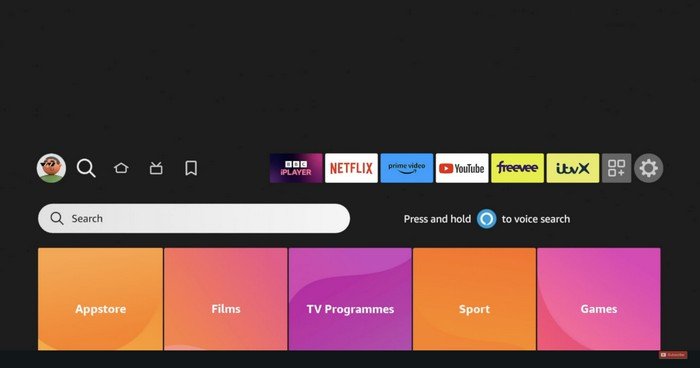
  1. Step 1: Install Downloader App
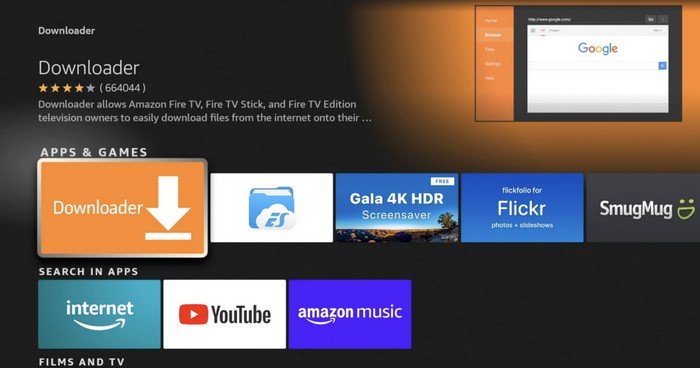
    The Downloader app allows you to download apps not available on the Amazon App Store.
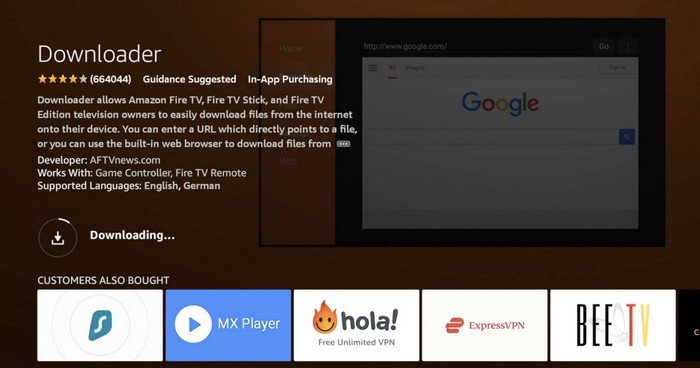
    A: Go back to the home screen and select the Search icon.

    B : Type in Downloader and search.

    C: Find the Downloader app, select it, and click on Download to install.

  2. Step 2: Allow Apps from Unknown Sources
    Before you can install third-party apps on your Firestick, you need to allow apps from unknown sources:
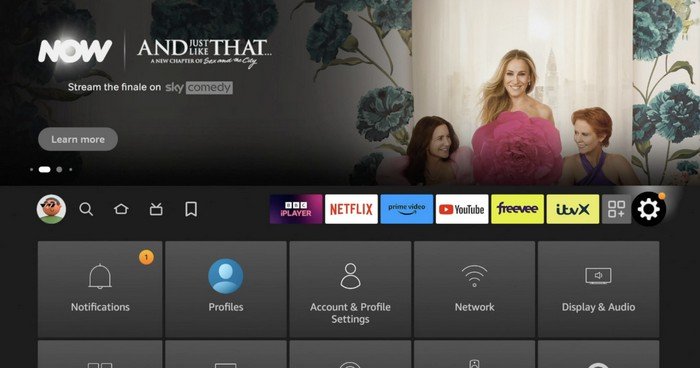
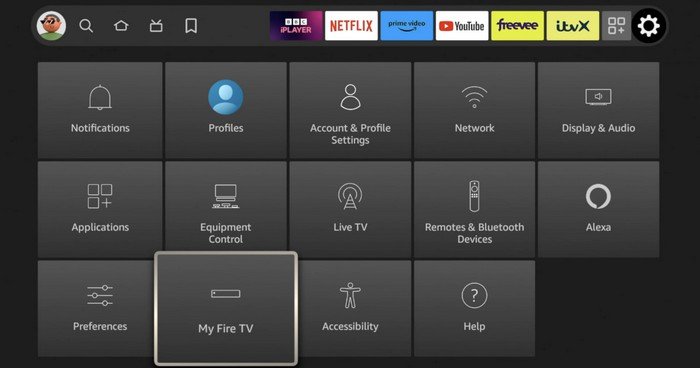
    A: Navigate to Settings on your Firestick home screen.

    B : Select My Fire TV (or Device on some models).

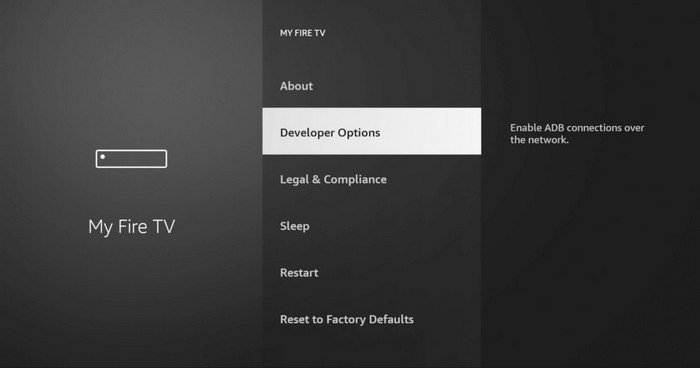
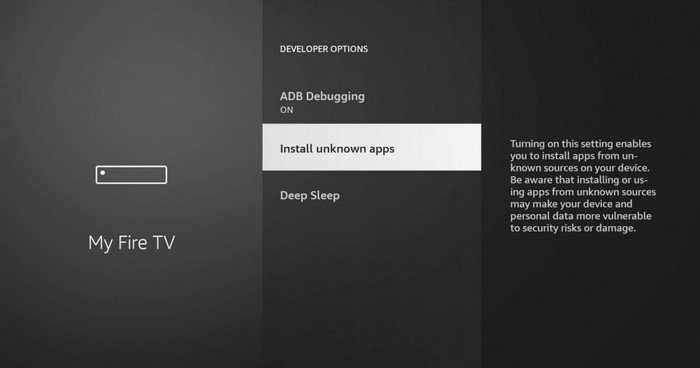
    C: Choose Developer Options.

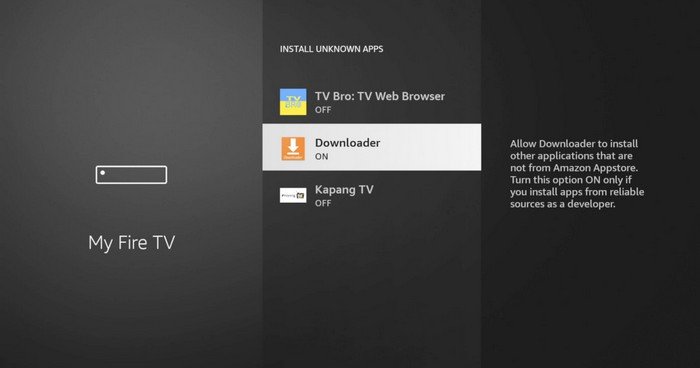
    D: Turn on ADB debugging and Apps from Unknown Sources.

  3. Step 3: Now that the Downloader app is enabled

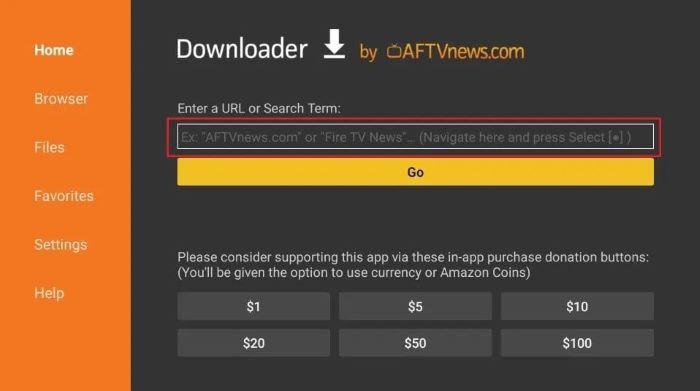
    A : open it and dismiss any prompts that appear. Once you see the main screen, select the URL textbox
    on the right side (ensure that the “Home” option is selected in the left menu) where it reads “http://”.

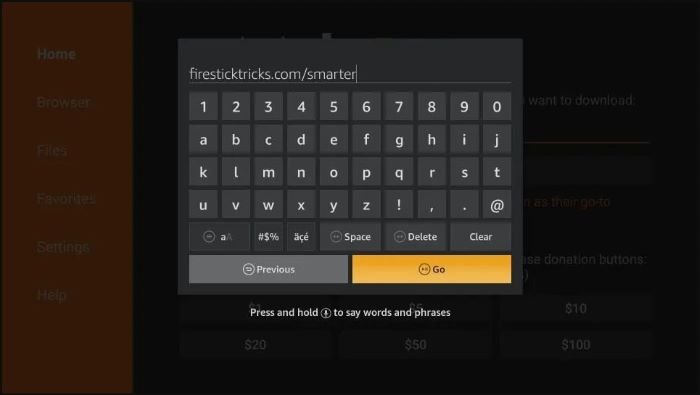
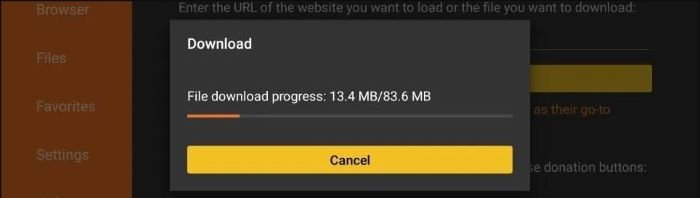
    B : Enter the path https://www.iptvsmarters.com/smarters.apk on the URL textbox, and then click the GO button.

    C: Wait for a couple of minutes until the IPTV Smarter app is fully downloaded on your FireStick device.

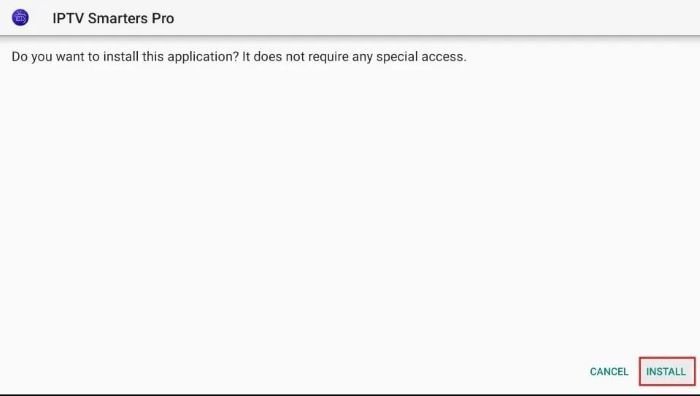
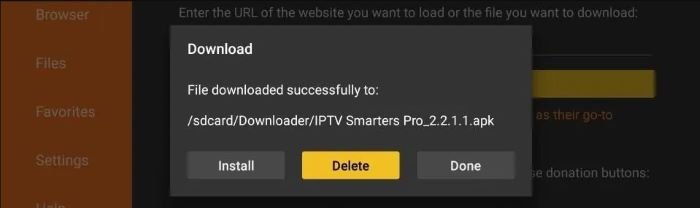
  4. Step 4: Once the download is finished, the APK file will automatically run on the app and initiate the installation process.
    A : Click the “Install” button to proceed.

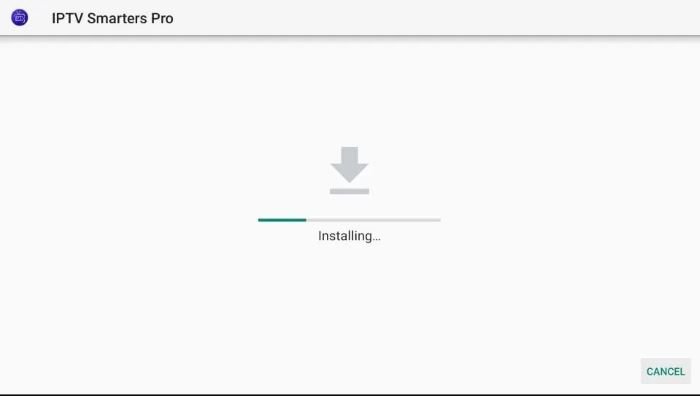
    B : wait until the installation process is complete.

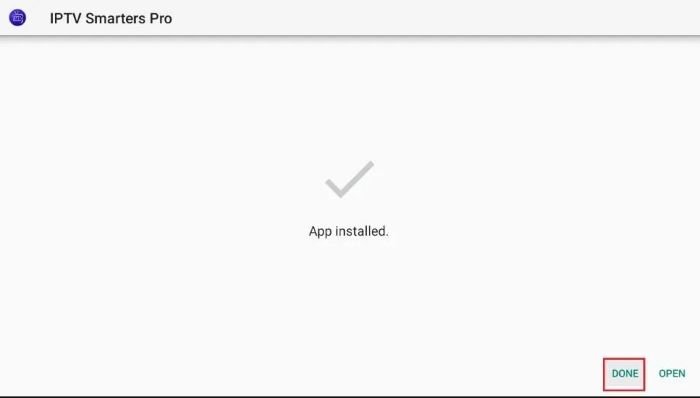
    C: After the installation is finished, you’ll see a notification confirming that the app has been installed.
    You can then choose to either open the app or click ‘Done’.
    It is recommended to click ‘Done’ to free up some storage space on your FireStick by deleting the APK file before opening the app.

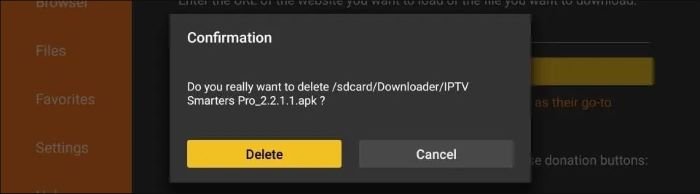
    D :If you selected ‘Done’ in the previous step, you will be redirected back to the Downloader interface. Here, please click on the ‘Delete’ button.

    E :Once you click ‘Delete’, you will be asked to confirm the action. Please click ‘Delete’ again to confirm the deletion of the APK file.

    Great! You now have the IPTV Smarters app installed on your FireStick.
    Use the subscription details we provide you – including your username, password, and portal URL – to log in to the app and start streaming your favorite content with The Stream View.

  1. Step 1: To begin, download the IPTV Smarters app from the Apple Store using this URL:
    https://apps.apple.com/in/app/smarters-player-lite/id1628995509 Alternatively,
    you can search for it on the App Store using the keywords “Smarters Player Lite“.

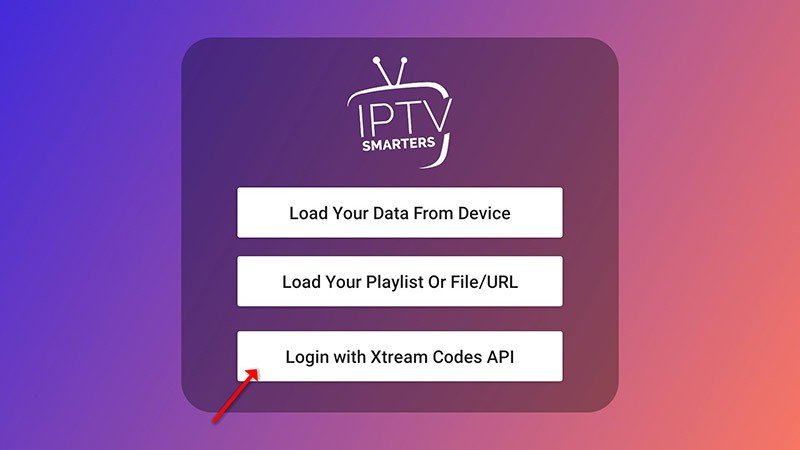
  2. Step 2: Once the app has downloaded, open it and select “Login With Xtream Codes API“.

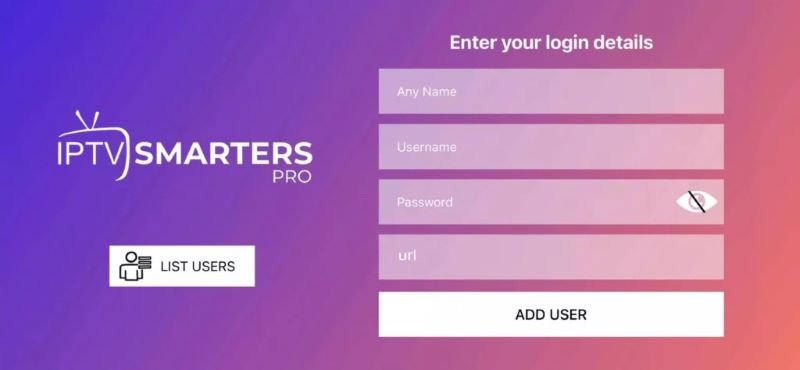
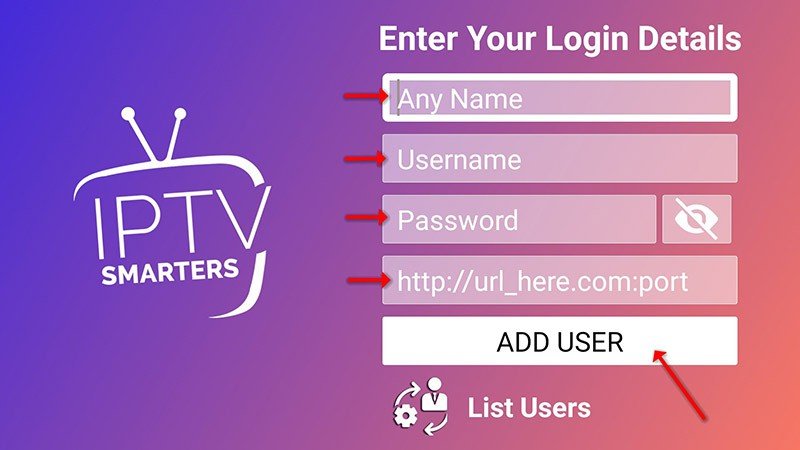
  3. Step 3: Enter the login details that we have provided you after you have subscribed to The Stream View.
    Then click on ADD USER to proceed to the next section.

  4. Step 4: Wait a few seconds for the login to complete.

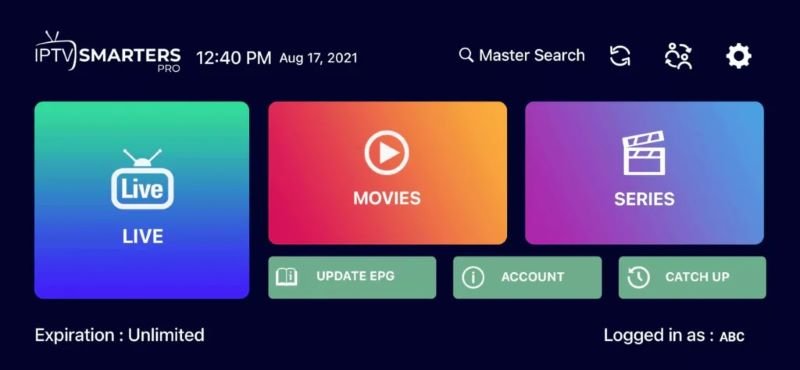
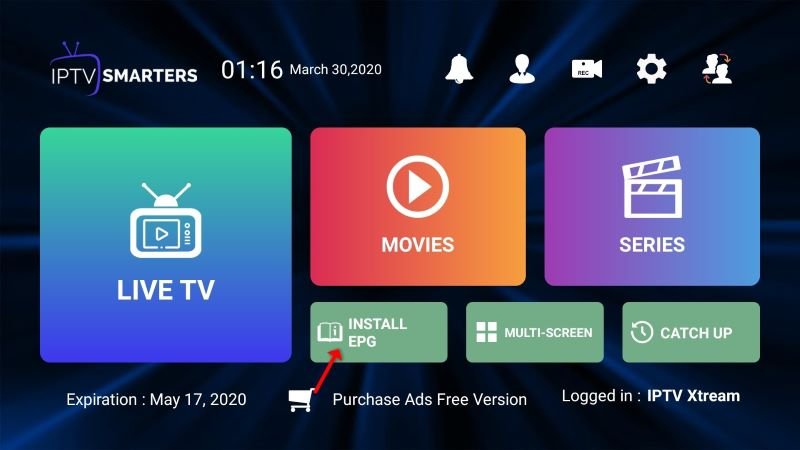
  5. Step 5: Click on the “Live TV” icon, as shown in the image.

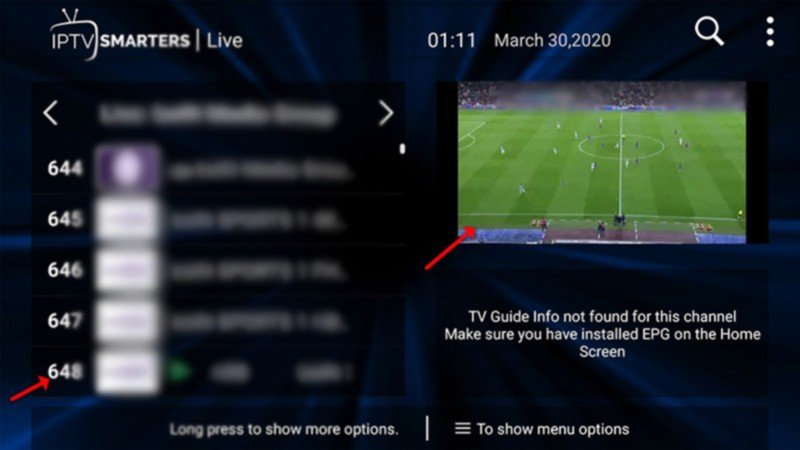
  6. Step 6: Select the channel group that you wish to watch and proceed to the next section.

  7. Step 7: Click on the channel name and then double-click on the small screen to turn it into full screen mode.


  8. Step 8: There is no need to add an EPG URL. Simply click on “Install EPG“.


  1. Step 1: Begin by downloading the IPTV Smarters

    https://www.iptvsmarters.com/smarters.apk

  2. Step 2: Once the app has downloaded, open it and select “Login With Xtream Codes API“.

  3. Step 3: Enter the login details that we have provided you after you have subscribed to The Stream View.
    Then click on ADD USER to proceed to the next section.

  4. Step 4: Wait a few seconds.

  5. Step 5: Click on the “Live TV” icon, as indicated in the image.

  6. Step 6: Select the channel group that you wish to watch from the available options and proceed to the next section.

  7. Step 7: Click on the channel name that you want to watch and then double-click on the small screen to turn it into full screen, which is the final step to start streaming.

  1. Step 1: Download the IPTV Smarters app by visiting this URL:

    https://www.iptvsmarters.com/download?download=mac

  2. Step 2: After the app has been downloaded and installed, choose “Login With Xtreme Codes” from the menu.


  3. Step 3: Use the subscription details we provide you to log in to the app. This includes your username, password, and portal URL.


    For Samsung Smart TV :


  1. Step 1: Press the Smart Hub button on your Samsung Smart TV remote.

  2. Step 2: Search for “IPTV Smarters Pro” in the search bar and install the app.

  3. Step 3: Open the app and select “Login with Xtream Codes API“.


  4. Step 4: Enter the login details provided to you after subscribing to The Stream View service,
    including your username, password, and portal URL.


  5. For LG Smart TV :


  6. Step 1: Turn on your LG Smart TV and press the “Home” button on the remote.

  7. Step 2: Navigate to the LG Content Store and search for “IPTV Smarters Pro” in the search bar.

  8. Step 3: Install the IPTV Smarters Pro app and open it.

  9. Step 4: Choose “Login With Xtreme Codes” as the login option.


  10. Step 5: Enter your subscription details, including username, password, and portal URL provided by The Stream View.


  1. Step 1: Download the IPTV Smarters app by visiting this URL:

    https://www.iptvsmarters.com/download?download=mac

  2. Step 2: After the app has been downloaded and installed, choose “Login With Xtreme Codes” from the menu.


  3. Step 3: Use the subscription details we provide you to log in to the app. This includes your username, password, and portal URL.

  1. Step 1: From your TV store on Samsung, LG, or other compatible devices, you can download any of the following applications:
    SetIPTV, NetIPTV, Smart IPTV, IBO PLAYER, FLIX IPTV, SMARTONE, SS IPTV, OTT Player, or IPTV EXTREME.

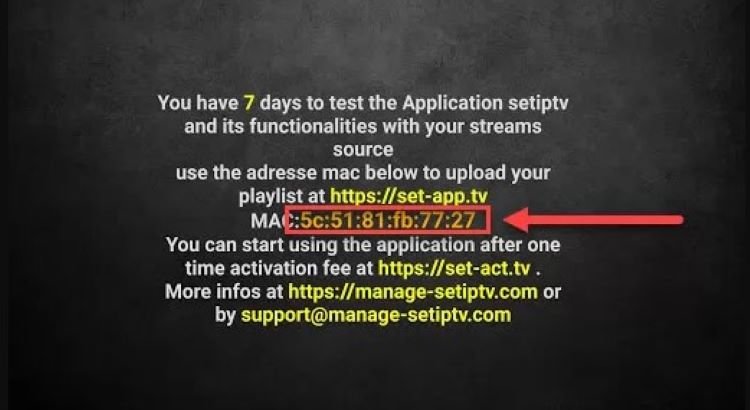
  2. Step 2: Once you have installed the chosen application, open it and you should see the MAC address displayed on the screen,
    as shown in the example below: 👇

  3. Step 3: Send us the MAC address through any of the following channels: Whatsapp, Email.

  4. Step 4: After a few minutes, restart or reboot your TV and then open the application.
    You should now be able to access the Stream View.

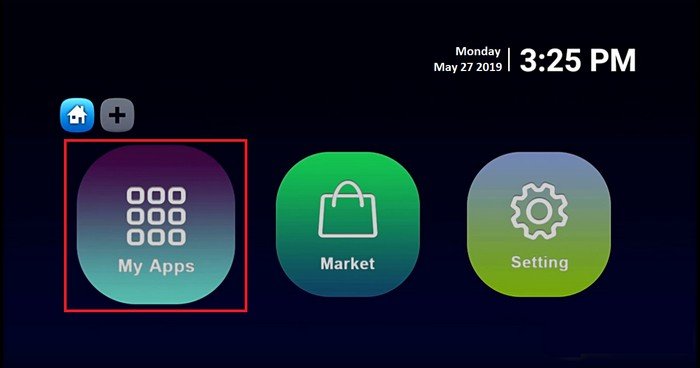
  1. Step 1: To begin, navigate to the main page of your Dreamlink device

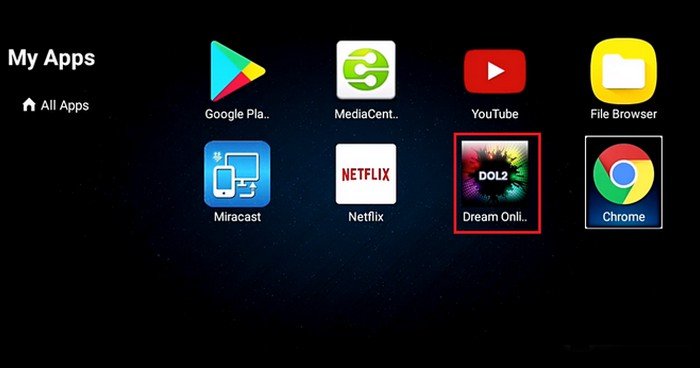
  2. Step 2: Inside My Apps, look for the application named DreamOnline (DOL2) and select it. If you don’t see it listed, go to the Market folder instead. From the Market, locate DreamOnline (DOL2), install it, and then return to My Apps where it will now appear ready to use.

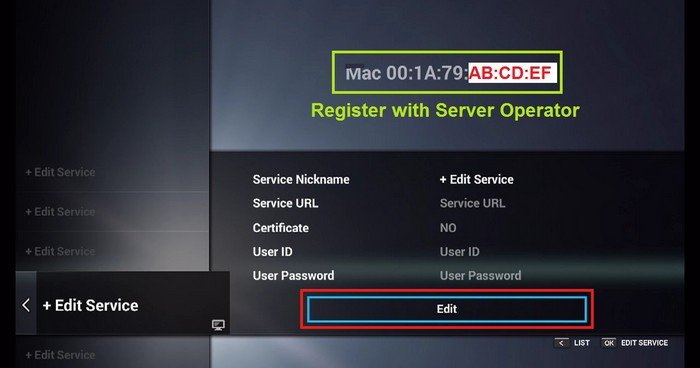
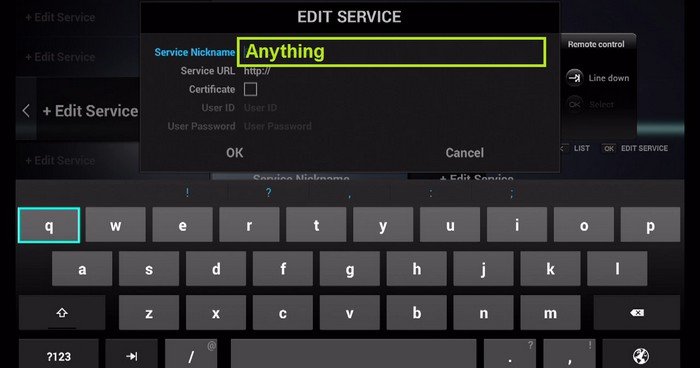
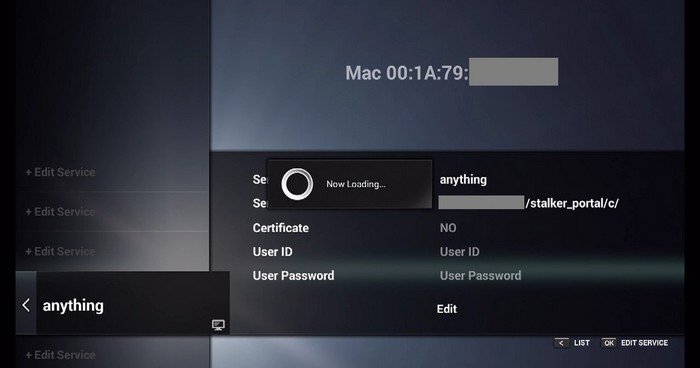
  3. Step 3: Once DreamOnline (DOL2) is open, choose the option Edit Service. Then click on Click Edit to begin entering your IPTV service details. At this stage.
    it’s important to ensure you are already registered with your IPTV provider’s homepage and that your MAC address is correctly linked to your account if required.

  4. Step 4: Enter Service Nickname (Any name).

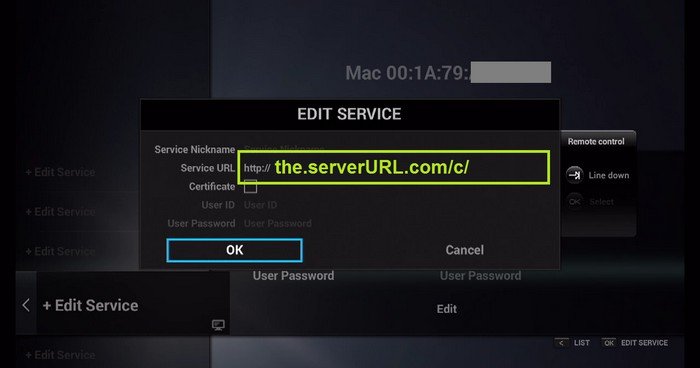
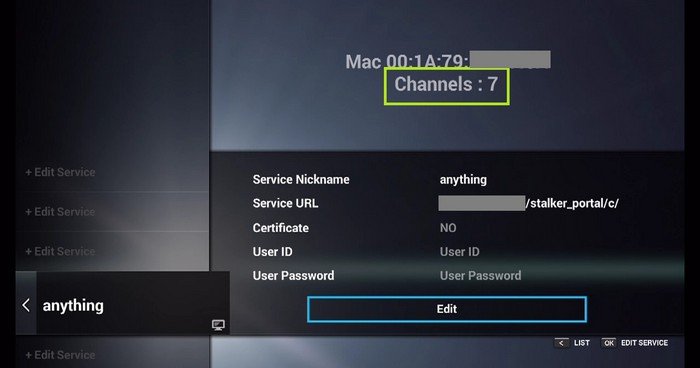
  5. Step 5: Enter the IPTV Server URL (Portal URL) you get from your IPTV service provider.

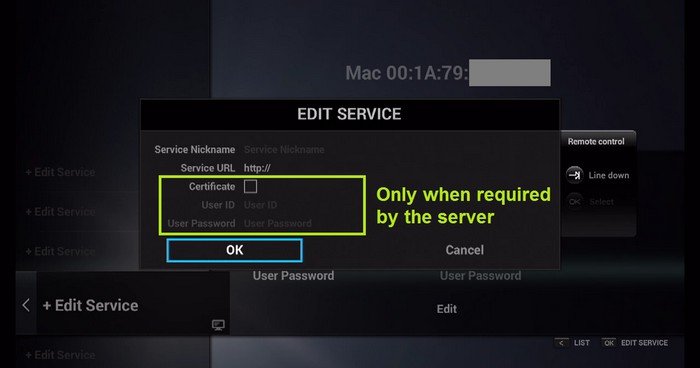
  6. Step 6: It is NOT necessary to enter the Username and Password.

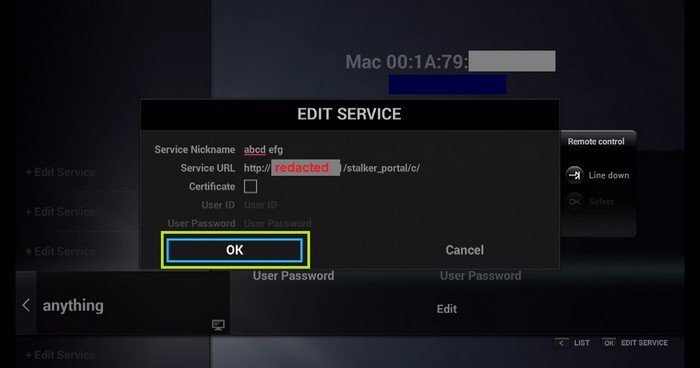
  7. Step 7: Click “OK“.

  8. Step 8: Connecting to IPTV Server (with your registered data) in progress.

  9. Step 9: Successful Connection! You receive all channels associated with your account.

  1. Step 1: We recommend setup via Xtream Codes API because you will have the Catchup feature this way and also do not need to add any EPG URL (it will load automatically).
    Open the app once downloaded and click on “Add user” then click on “Login with Xtream Codes API“.

  2. Step 2: In this step, in the first box, select any name you want for example “IPTV Xtream”. On the second and third boxes, enter the “Username” and the “Password” of your M3U line and the server URL which can also be found on your M3U line.
    Now Click on “ADD USER” to proceed to the next section.

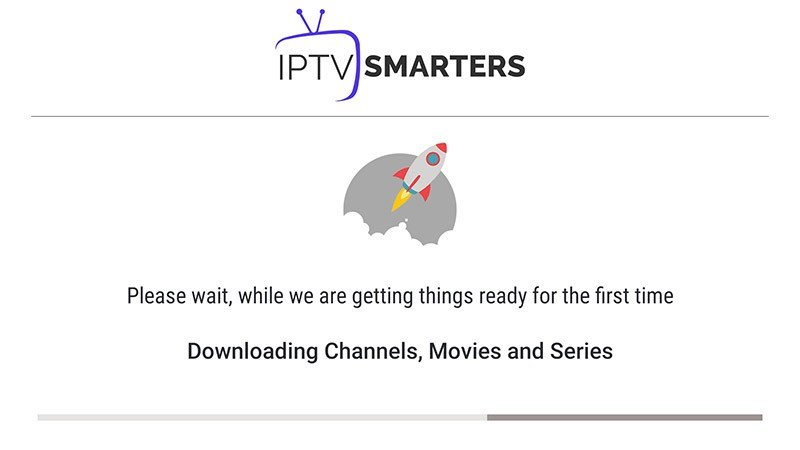
  3. Step 3: Wait some seconds.

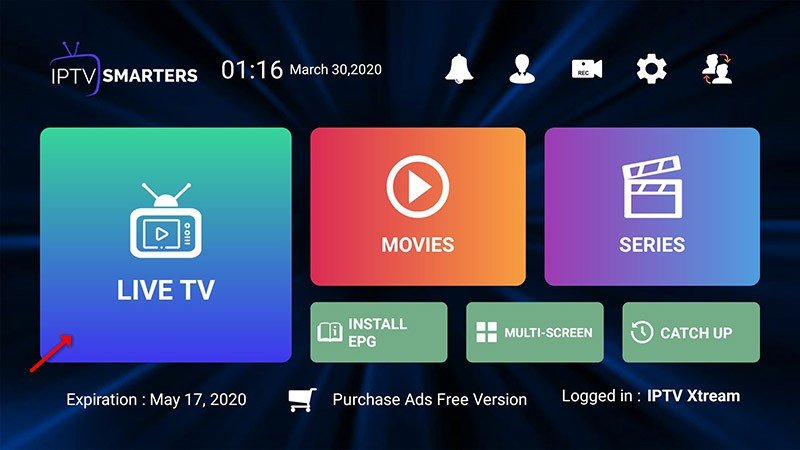
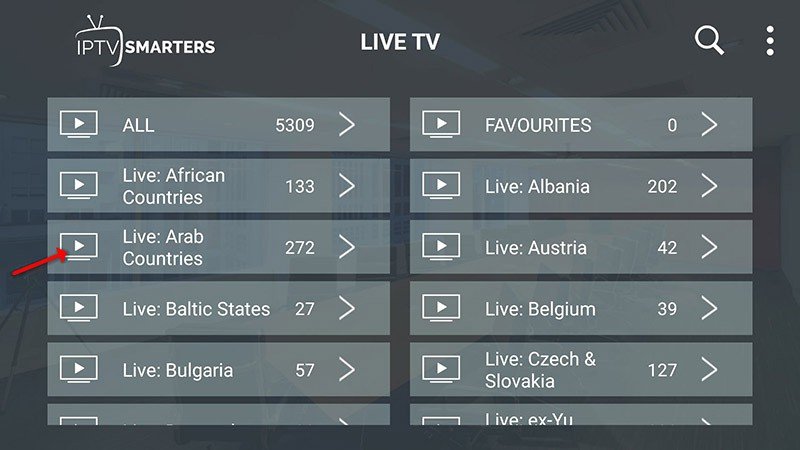
  4. Step 4: Now click on the “Live TV” icon as depicted in the image via a red arrow.

  5. Step 5: Now you must select the channel group that you want to watch and proceed to the next section.

  6. Step 6: Now you must click on the channel name and then double click on the small screen to turn into the full screen as the final step.

  7. Step 7: To add EPG no need to add any EPG URL, Just click on “Install EPG“.

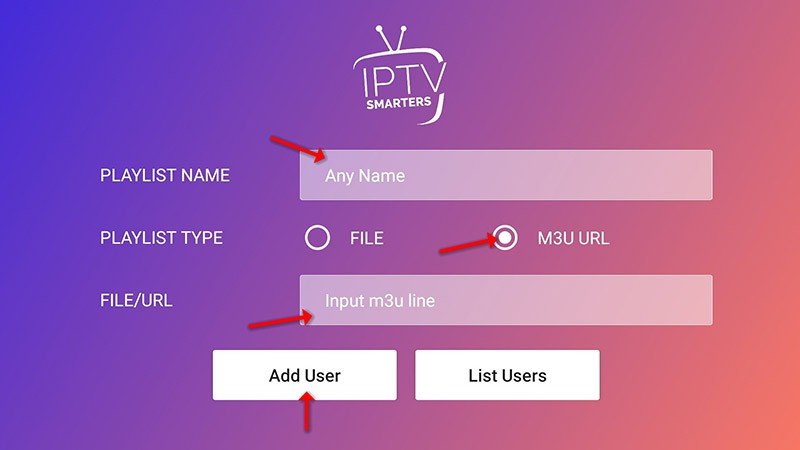
  8. Step 8: Open the app once downloaded and click on “Add user” then click on “Login with Playlist“.
    In this step, in the first box, select any name you want for example “IPTV Playlist”.
    Select “M3U URL” and enter the M3U URL which you get from your IPTV provider.

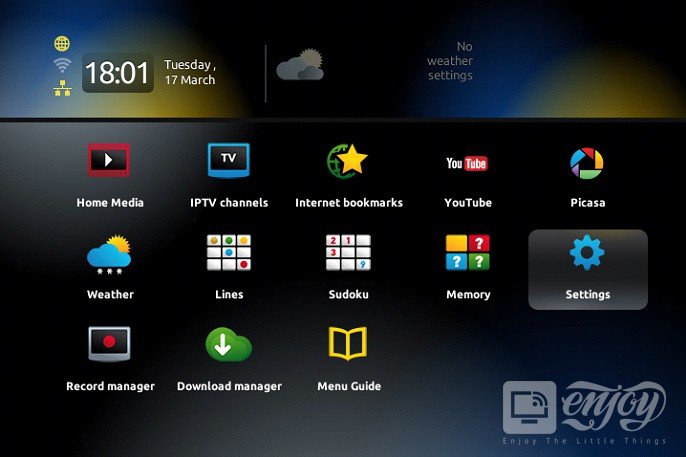
  1. Step 1: When the box is being loaded the main portal screen appears. After that click on “settings”,
    press the remote button “SETUP/SET”

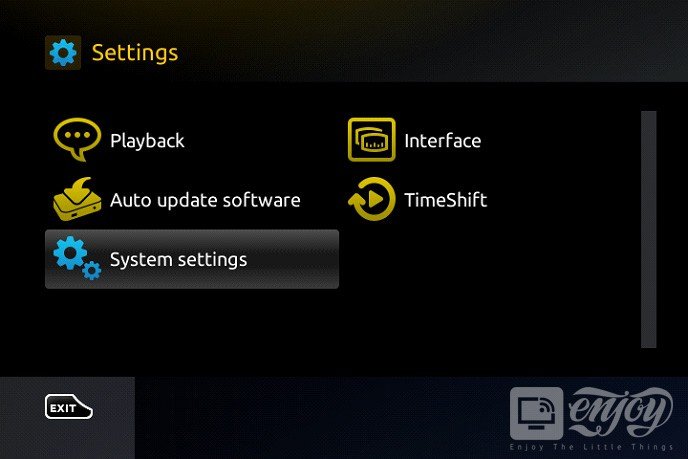
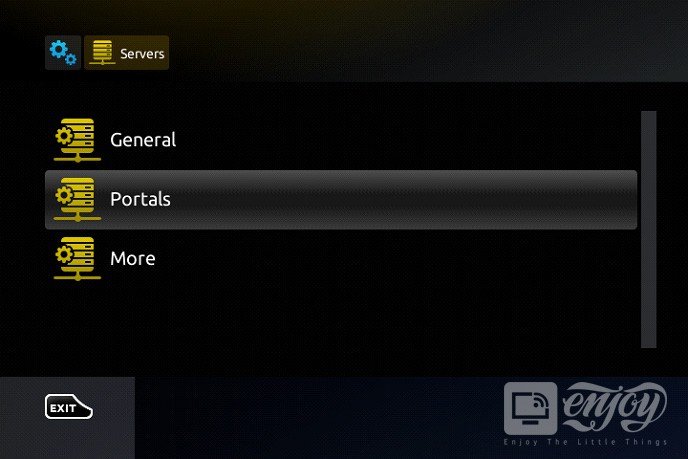
  2. Step 2: Then press on “System settings” and click on “Servers”.

  3. Step 3: Select “Portals”.

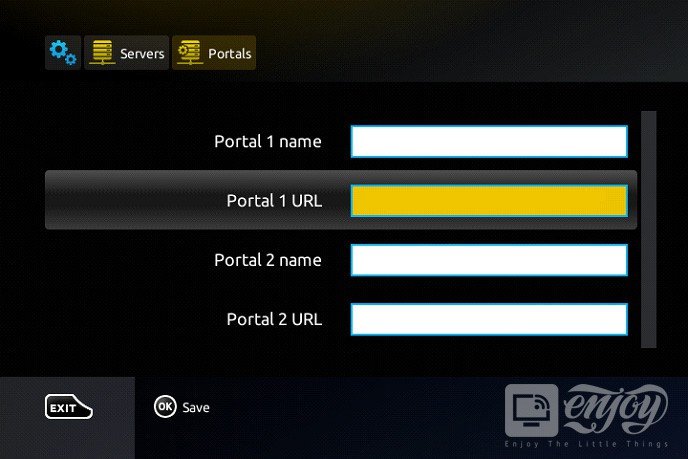
  4. Step 4: In the “Portal 1 name” line ,enter a name for your portal, and in the “Portal 1 URL” field,
    enter the corresponding URL for your portal.
  5. To activate your IPTV subscription on your MAG box, please send us your MAC address,
    which can be found on the label behind the box, along with your order. The activation will be done remotely,
    and once completed, we will provide you with a URL link that you’ll need to enter on your portal.

  6. Step 5: Click “OK” to save the changes.

  7. Step 6: After saving the changes, click “EXIT” on your remote control.

  8. Step 7: Finally, reboot the box by selecting “OK” to apply the changes.

  9. Note that The Stream View will provide you with all the necessary information via email to complete the activation process.

Ready to stream without limits? Explore our plans and unlock a world of channels, movies, and live sports.
Upgrade your entertainment today.